
When customers turn to ChatGPT, is your business getting recommended?
 Ashley Frank · November 26, 2026 · 14 min read
Written in November 2026. ChatGPT changes fast, so if a screen looks different, OpenAI’s help page has the latest steps.
Heads up: ChatGPT’s Business Hub is brand new and still rolling out. OpenAI says availability depends on where your business is and what kind of business it is, so not every business can claim a profile yet. If you try and it doesn’t work for you, don’t worry. Check back in a few weeks.
More and more of your customers are turning to ChatGPT for answers and recommendations. Things like “Who’s the best mortgage broker in Halifax for new construction?”, “Who can help me build a website in Halifax?” or even “Where should we eat tonight?”
So how do you make sure ChatGPT knows your business exists and gets your details right?
Right now, one of the simplest things you can do is claim your free business profile. In November 2026, OpenAI (the company behind ChatGPT) released Business Hub: a way for businesses to claim their official business profile inside ChatGPT, kind of like a Google Business Profile. The profile helps ensure that when someone asks about your work or service, ChatGPT has your real details: what you do, your website, and how to reach you, in your words.
I’m normally a slow adopter with things like this. But with the pace of AI, and how quickly people’s search and decision-making habits are changing, I decided to jump on this one early. It’s free, it takes less than 20 minutes, and it could pay dividends down the road.
So I went through the whole profile setup process for my own business and took screenshots along the way so you can follow along to claim your profile.
The short version
Want the details, the screenshots, and the snags I hit? Keep on scrolling.
- Sign in to ChatGPT and go to chatgpt.com/business-hub.
- Search for your business. If it’s listed, claim it. If not, click Create to add it.
- Next, add your business website.
- Now, you need to confirm that you own your website by adding the provided TXT record to your DNS settings wherever your domain lives. (I use GoDaddy.)
- Add your business category, a plain-language description, and your contact info. (The description has a 300-character limit.)
- Verify your identity with a government ID and a selfie, then enter your legal business details and upload a business document. (The business details need to be an exact match.)
- Your Business Hub profile may be approved instantly, or it may go through a short review. You’ll get an email from OpenAI when your business is approved.
Why should you claim your Business Hub profile?
To understand why, it helps to look at how online search has worked until now, and how fast that’s changing.
Google has been the gold standard for finding information online since the early 2000s. Yes, there are others, like Bing and Yahoo, and if you’re old like me, you’ll remember AltaVista and Ask Jeeves. (Yikes, I’ve been around a hot minute.)
With traditional search, you typed in a question and got a list of results, ranked by the search engine’s algorithm. For businesses, the goal was to land on the first page or two, because that’s where people looked. From there, the searcher scanned the list, clicked a few websites, and made decisions based on their findings.
Then, in late 2022, ChatGPT arrived. Within months, Anthropic’s Claude and Google’s Gemini followed, and in just a few years the way people search online has shifted from search results to real-time answers and recommendations.
Instead of scrolling through a list of links, we ask a question, and AI does the information gathering for us, handing back whatever it decides is the most relevant information. What’s wild is how quickly we’ve come to trust it. More and more people take the AI answers and recommendations at face value and make decisions without ever digging deeper.
This is called zero-click search, a trend AI has supercharged. Tools like ChatGPT and Google’s Gemini pull from sources they consider reputable and, instead of giving you a list of links, they give you a summary. Sometimes the sources are cited; sometimes they aren’t.
Today, people often get what they need without clicking through to a website. And it’s growing fast. Similarweb found that in May 2024, when Google added AI Overviews (powered by Gemini) to the top of the page, 56% of Google searches for news ended without a click to any website. By May 2025, that number had jumped to 69% (TechCrunch).
In short, more and more often, AI reads your website so your customers don’t have to. And I don’t see that slowing down anytime soon.
So what used to be all about SEO (search engine optimization) now has a new layer: AEO, or answer engine optimization. It’s about making sure that when someone asks an AI tool a question, it finds clear, credible information about your business, so that you become part of the answer.
AI search and answer engines like ChatGPT, Claude, Perplexity, Google’s Gemini and Microsoft Copilot are still very new, and the rules are being written as we go. ChatGPT is one of the first to let businesses claim a profile, and it now sells ads too, so businesses can pay to show up as a labelled ad alongside its answers (OpenAI). Claiming your profile is the free way in, and it’s a good time to get in early.
Why does this matter? If someone asks ChatGPT who to call, the answer they get may be the only thing they read. If ChatGPT doesn’t have your real details, it may not recommend you at all, or it may piece together details from whatever it can find online, which could be outdated or just plain wrong.
Will claiming your profile guarantee you get found or recommended? Nope. Many factors go into being found by AI tools. For example, ChatGPT’s search leans on Bing, among other sources, so it helps to submit your website to Bing Webmaster Tools. Your website also needs to be set up so AI tools can read it easily, and some businesses add a file called llms.txt to help. (I’ll cover all of this in another post.)
Outside of the technical stuff, the quality of your content matters more than ever. AI is looking for more than a few keywords. It wants to know your website has helpful information people can rely on, based on real, first-hand experience, not generic content anyone could have written.
Claiming your profile is a smart first step. It’s one of the easiest ways to start building your presence in AI search.
How to claim your ChatGPT Business Hub Profile
Before you get started, have these open or nearby so you’re not running a scavenger hunt around your desktop and your house halfway through. It goes much faster when you’re not hunting for a login mid-step.
- Your website domain login (GoDaddy, Squarespace, Wix, Namecheap, wherever your domain lives). You’ll add one small record there in step 5. If someone manages your website or tech stuff, you might want to involve them before you start this process.
- A mobile phone number. Toll-free numbers (800, 844, and so on) didn’t work for a text code. (I didn’t try the voice call option.)
- Your business email inbox, for a second verification code.
- A government-issued photo ID and a phone or webcam for a quick selfie.
- Your official business registration details: your legal business name exactly as registered, your registration number, and a document that proves it (registration certificate, business licence or similar) as a PDF or photo.
Part 1: Create your business profile
1. Go to the ChatGPT business hub
Sign in to ChatGPT, go to chatgpt.com/business-hub, and type your business name in the search box.
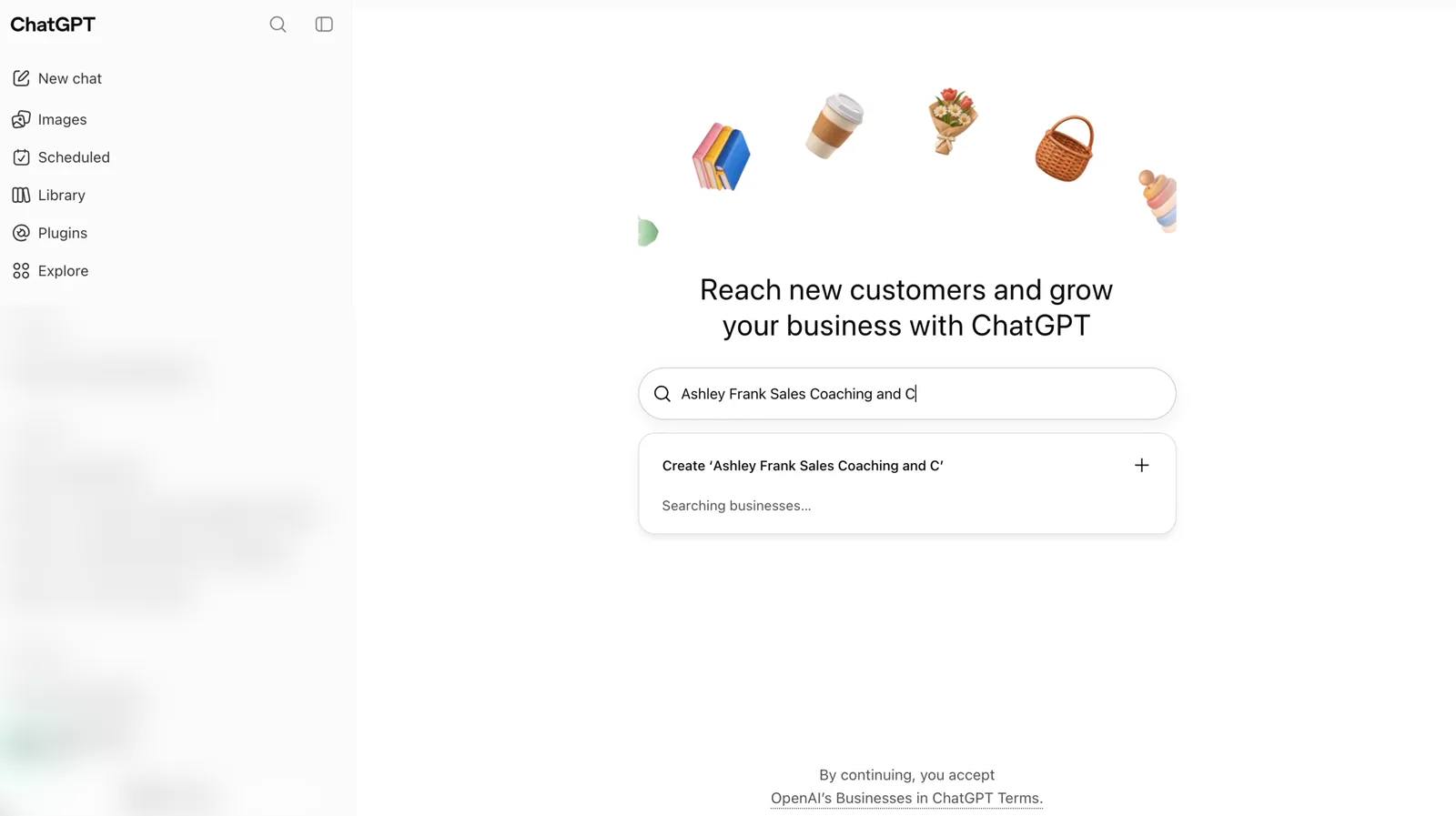
2. Claim your listing, or create a new one
If your business already shows up in the list, ChatGPT may already have a listing for you. Click your business, and if it says Claim this business, you can claim it and verify that it’s yours.
If your business doesn’t show up, click Create next to your business name. Then click Get started. That’s what I did.
Depending on your business, you may also receive a message to contact ChatGPT support for assistance. This has been happening for larger hotel chains and businesses with multiple locations.
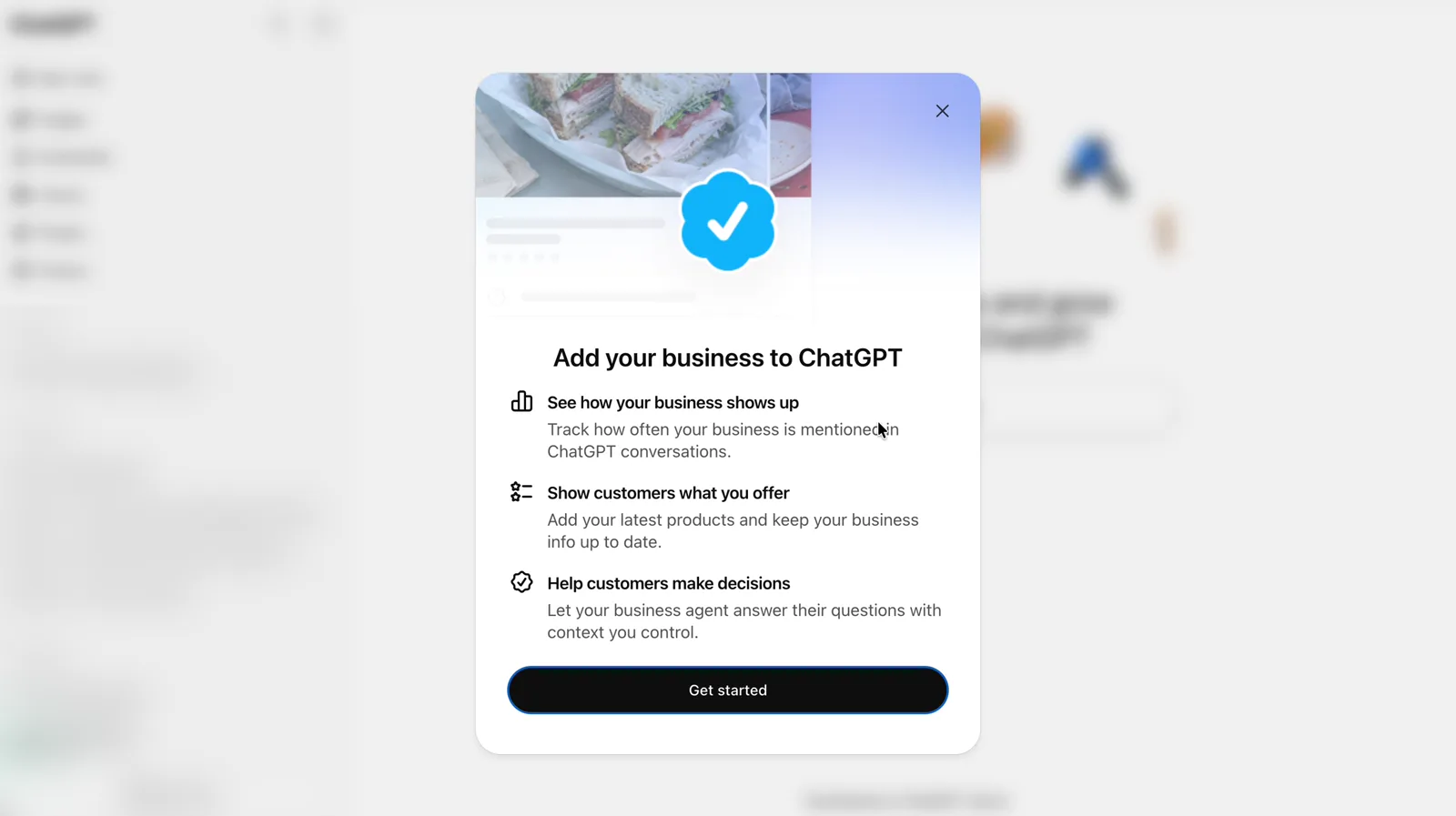
3. Tell ChatGPT how customers reach you
Pick the option that fits. For most coaches, consultants, and advisors, that’s “Through a website.” That’s what I selected.
4. Add your website
Type in your website address and click Continue. If you have more than one website, use the main website for your business.
5. Copy the TXT record ChatGPT gives you
If you’re not technical, take a deep breath. 😮💨 This is where you need access to your website domain and its DNS records. The next two steps walk you through it.
Now ChatGPT needs to check that your business really owns your website. You prove it by adding a small text note, called a TXT record, to your domain’s settings. It doesn’t change anything on your website. It just tells ChatGPT “yes, this is mine.”
ChatGPT gives you three things to copy: the type (TXT), the name (sometimes called the host), and a long value. Keep this tab open, because you’ll come back to it. (I’ve blurred my value in the screenshots. Yours will be different.)
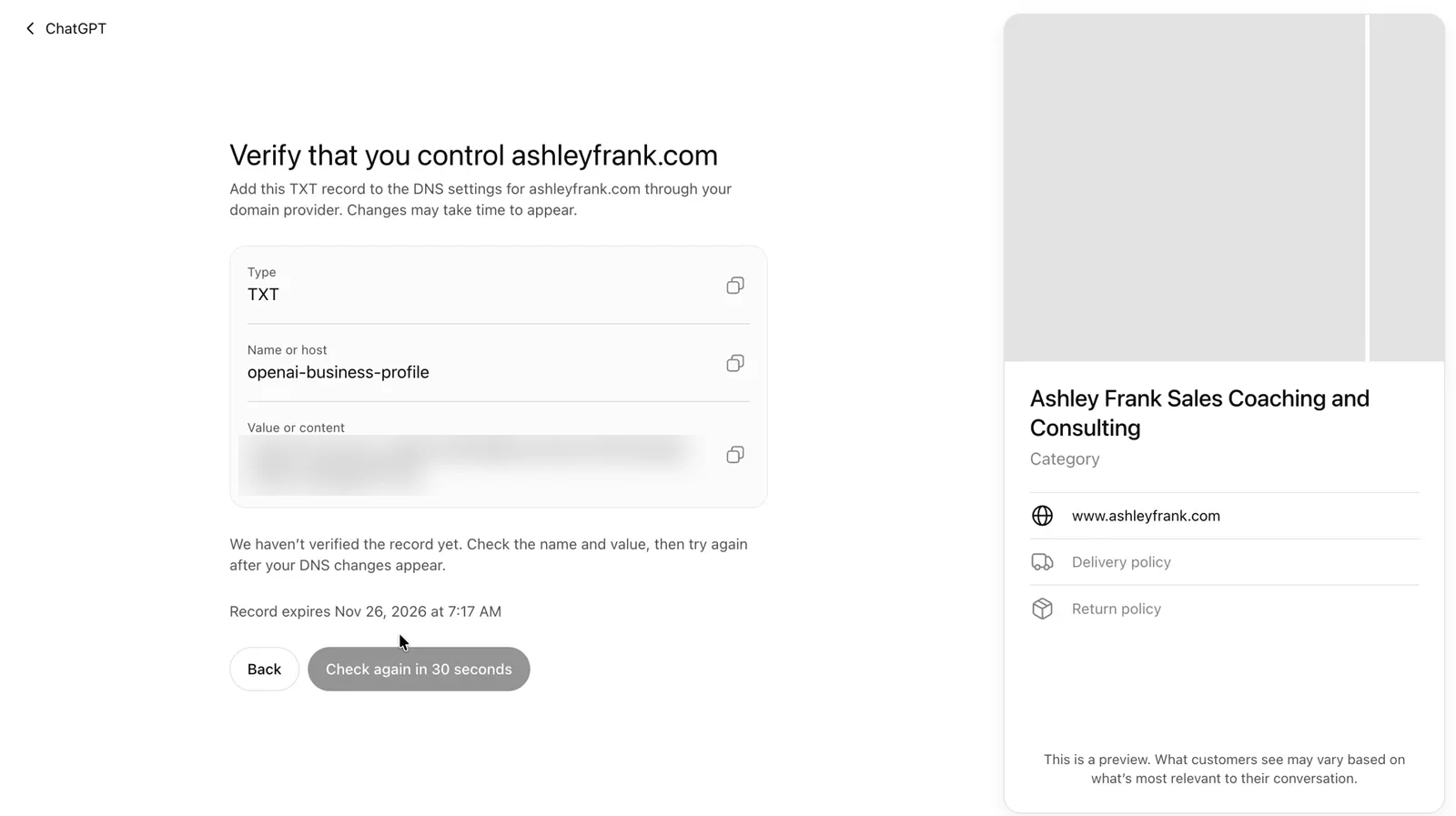
6. Add the text record to your domain’s DNS settings
Your domain host is the company you pay for your website address (your domain). I use GoDaddy, so that’s what you’ll see in the screenshots.
In a new tab, log in to your domain host and go to your domain’s DNS settings. Click Add New Record, choose TXT, then paste in the name and the value from ChatGPT. Click Save.
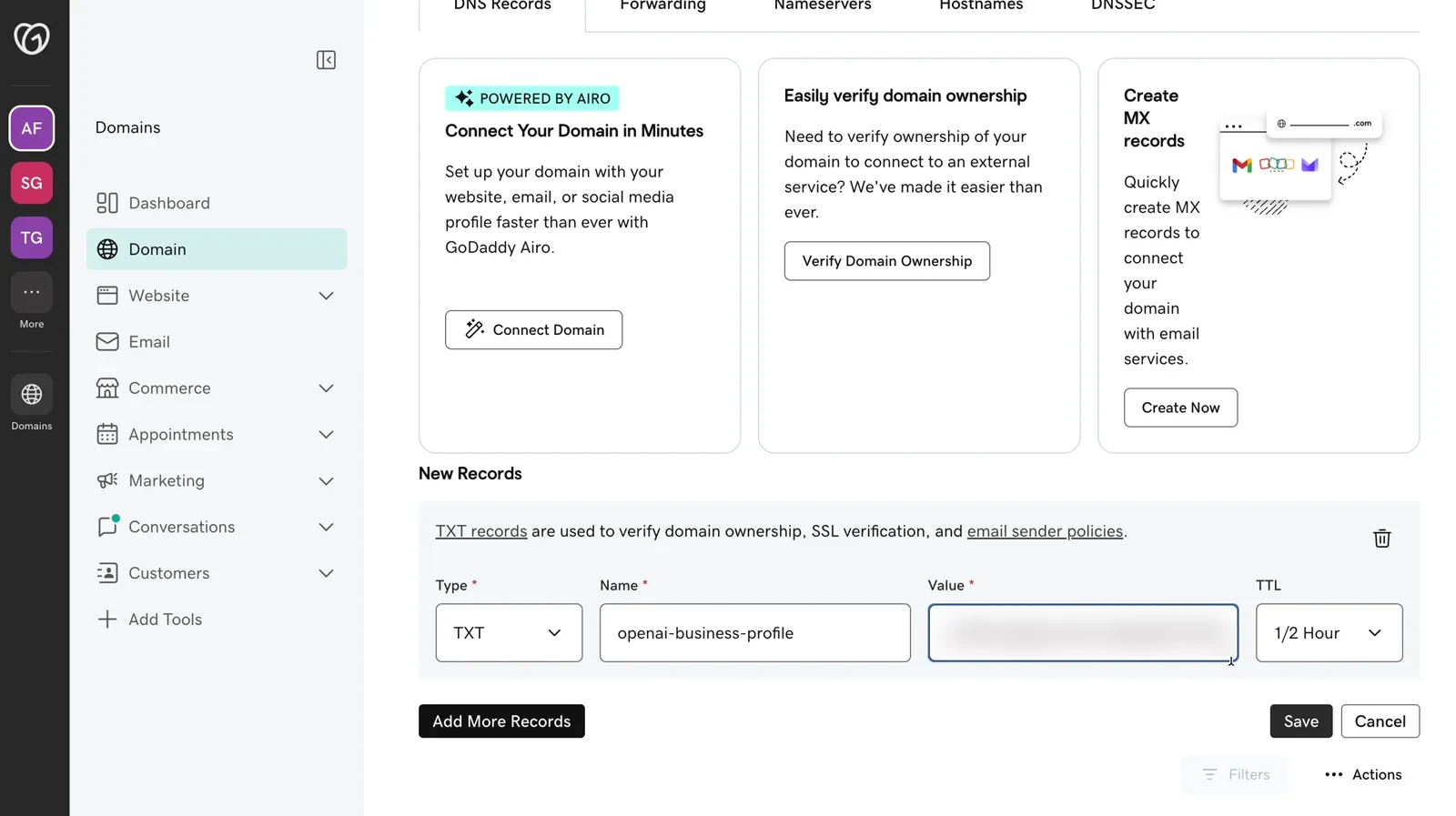
If your domain isn’t with GoDaddy, the steps to add a TXT record are almost the same. Here are guides from some popular domain hosts:
- GoDaddy: Add a TXT record
- Namecheap: How do I add TXT records for my domain?
- Squarespace: Adding DNS records to your domain
- Wix: Adding or updating TXT records
- Cloudflare: Create DNS records
Not sure where your domain lives? Search your email for the receipt from when you bought it. If someone else manages your website, send them the three things from step 5 and ask them to add the TXT record for you. It takes them a couple of minutes.
7. Go back to the ChatGPT tab and click Verify domain
If it says it can’t find the record yet, give it a minute or two and click again. Mine took about a minute and a half before the verification completed.
8. Pick your business category and describe what you do
You can only pick one category, so choose the one that fits your business at the highest level. ChatGPT will suggest more specific options. For example, I typed Business consultant, and it suggested Career coach and Sales coach. I went with Business consultant because it covers everything I offer.
Then write a few plain sentences about who you help and how. You have up to 300 characters. Write it the way you’d say it to a person. ChatGPT may share it in conversations, so plain words beat buzzwords.
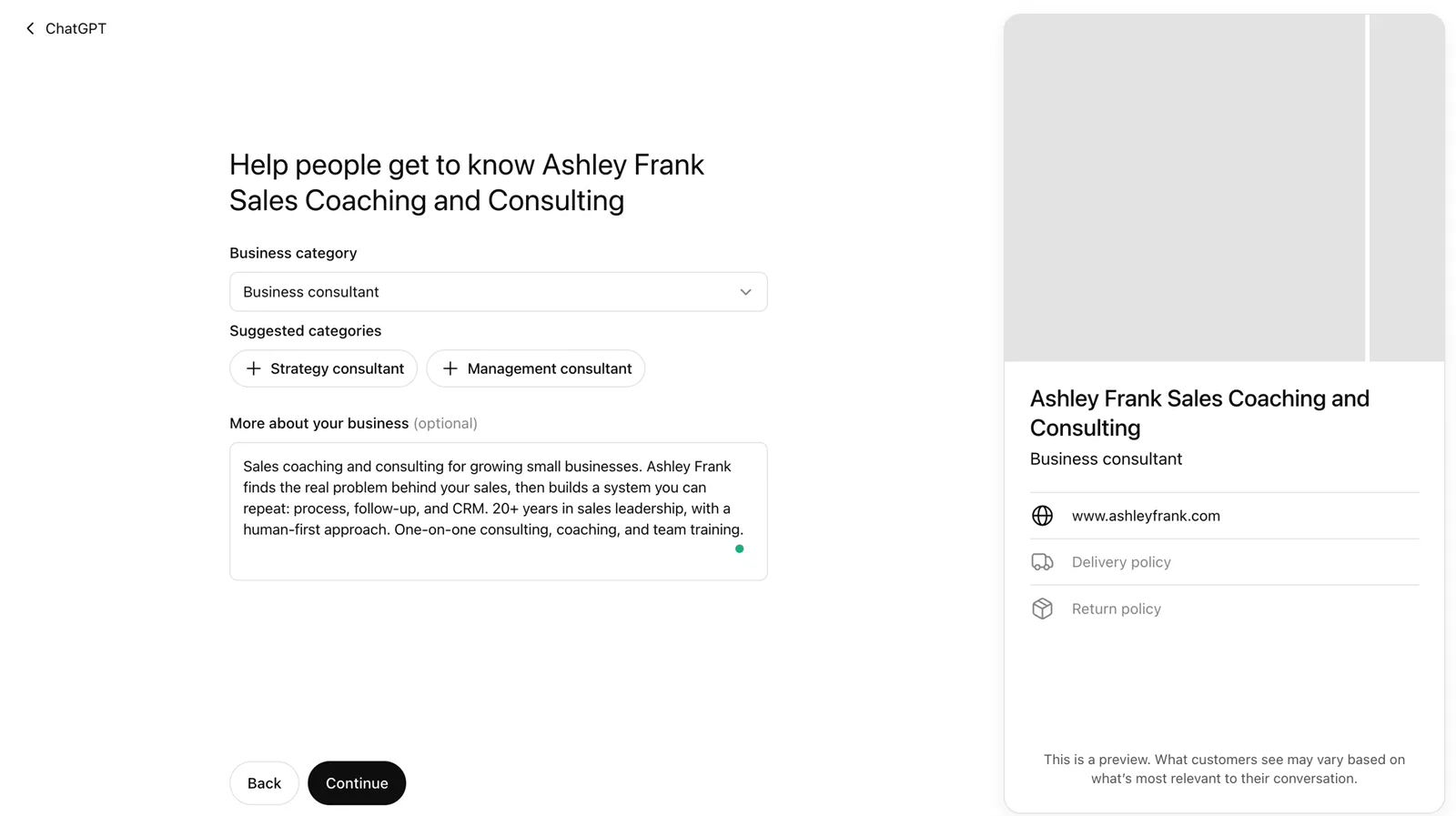
9. Add your contact info
Your phone number and email are optional, but they make it easy for customers to reach you.
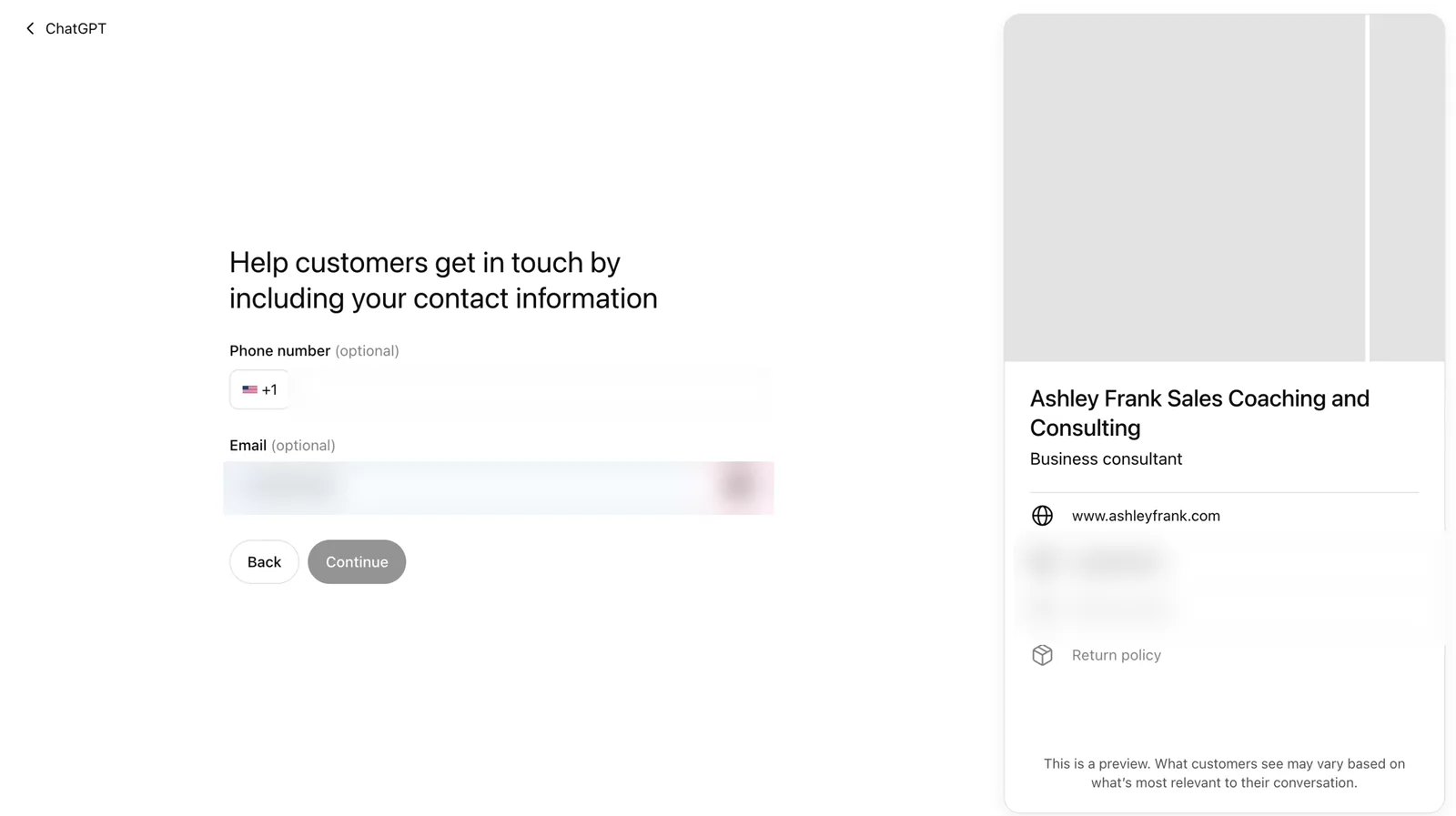
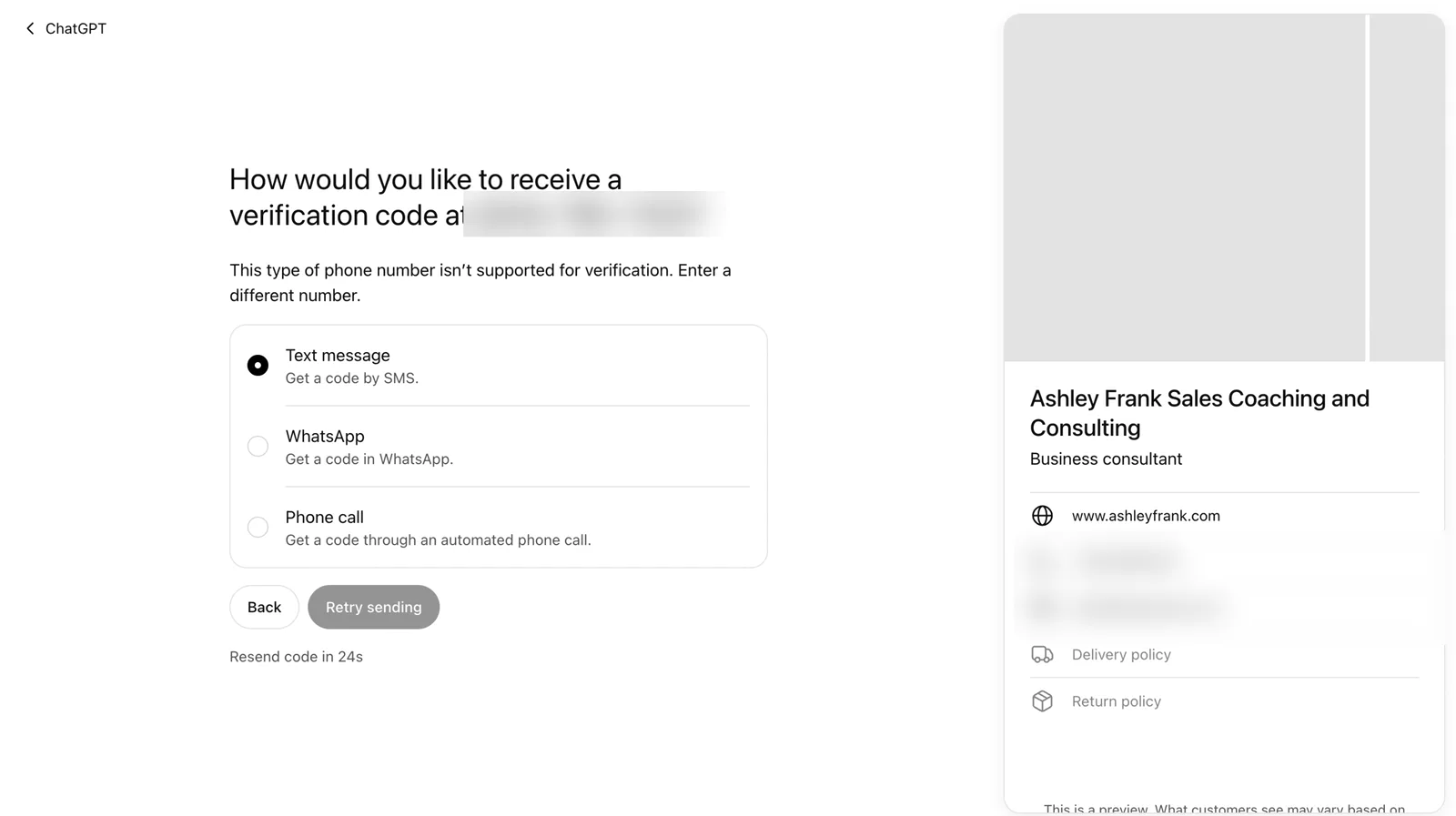
10. Verify your phone and email
ChatGPT sends a code to each. Here’s my first snag: I entered my toll-free business number, asked for a text message code, and got “This type of phone number isn’t supported for verification.” There’s also a voice call option, but I didn’t try it. I switched to my mobile number instead, and it went right through.
The email verification was smooth. The code arrived within seconds.
11. Set your delivery and return options
If you sell a service, “We don’t offer delivery” and “Returns not accepted” are usually the right picks. If your business does offer delivery or returns, ChatGPT will ask you a few questions about each. My services don’t have either, so I picked those two options and moved on.
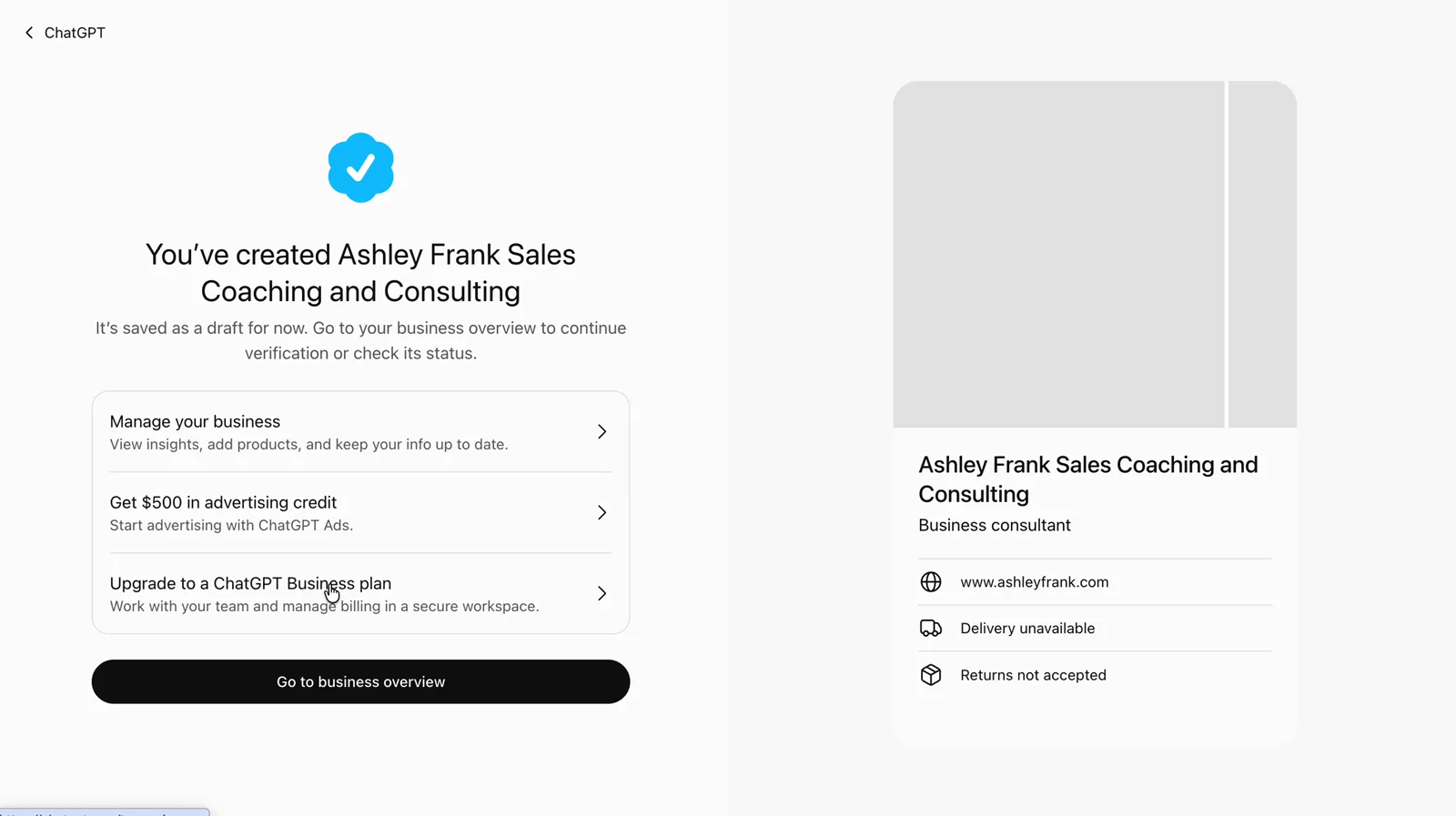
12. Congrats! Your profile is created
It’s saved as a draft for now. Click Go to business overview.
Part 2: Verify that you’re a real business
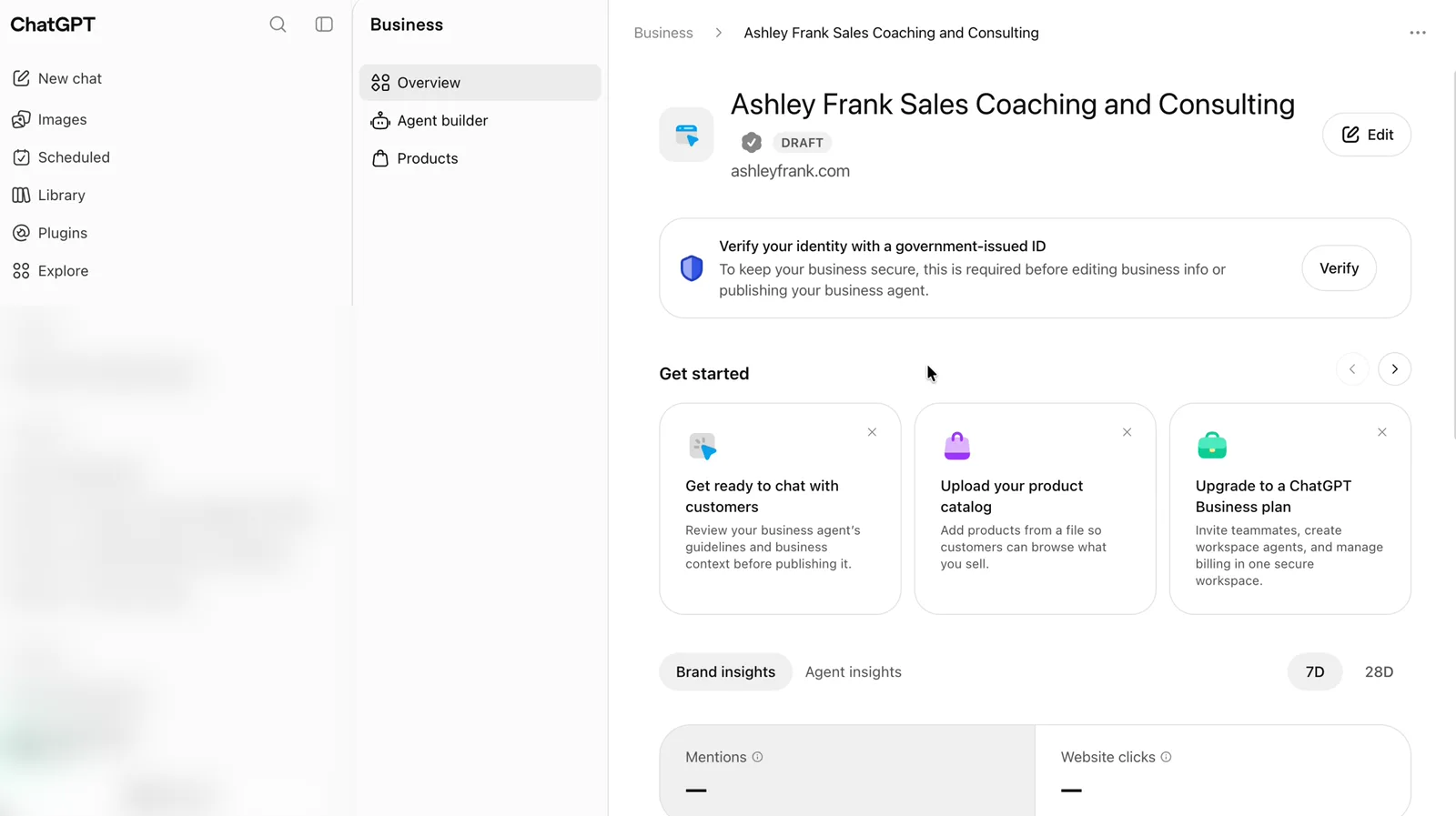
13. Verify your identity
On your business overview (chatgpt.com/business-hub), click Verify on the banner at the top. You’ll take photos of your government ID and then a quick selfie. You can use your computer’s camera or switch to your phone.
14. Enter your legal business details
Your legal business name, the name you operate under (if it’s different from the registered name), where you’re located, your business type, your registration type and registration number, and your business address.
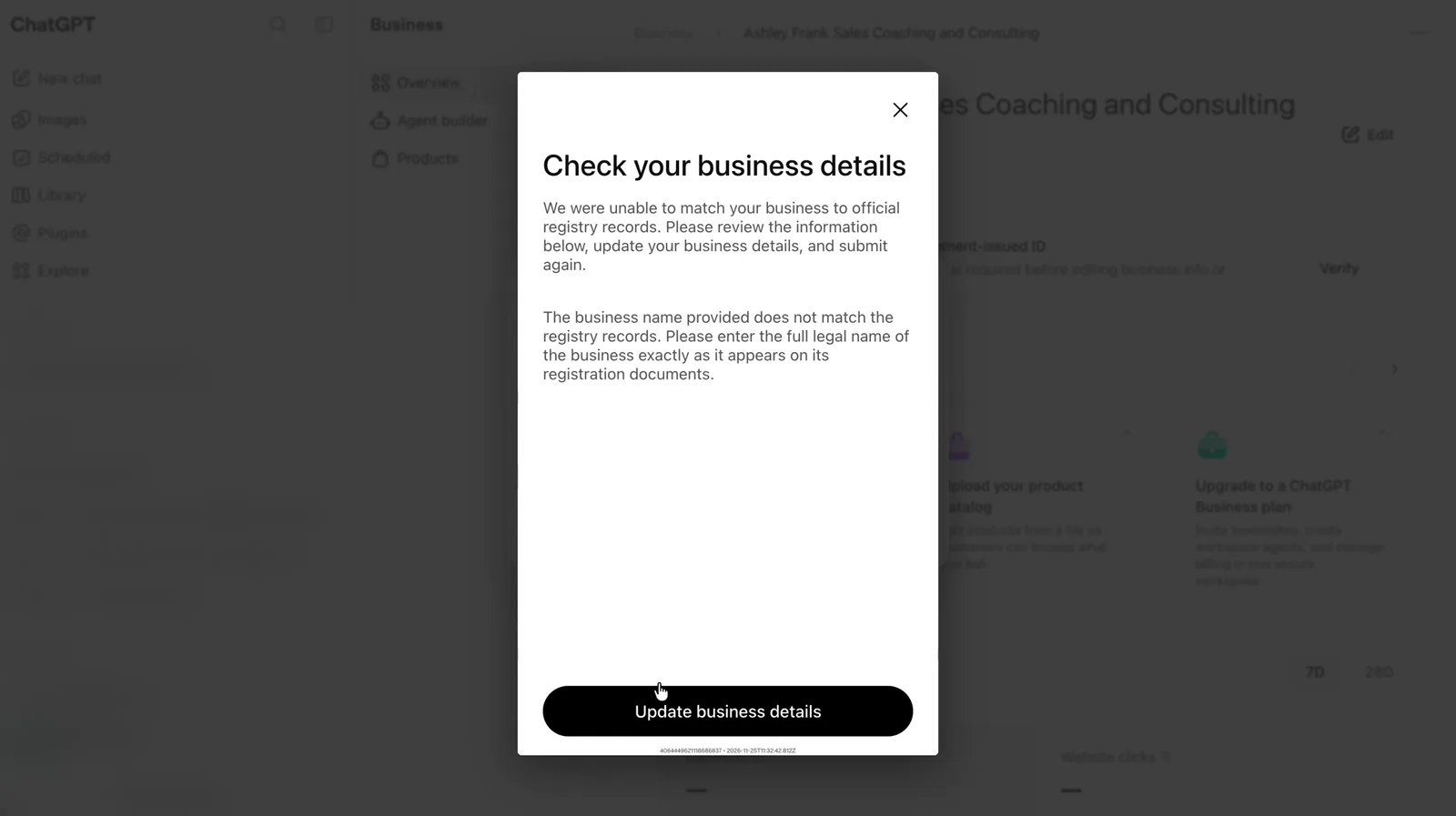
Second snag: my first attempt came back with “We were unable to match your business to official registry records.” The culprit? One extra space in my business name. The fix is to enter your legal name exactly as it appears on your registration document. Copy it right off the page.
15. Upload a business document
Upload something that shows your business name, like your registration certificate or business licence.
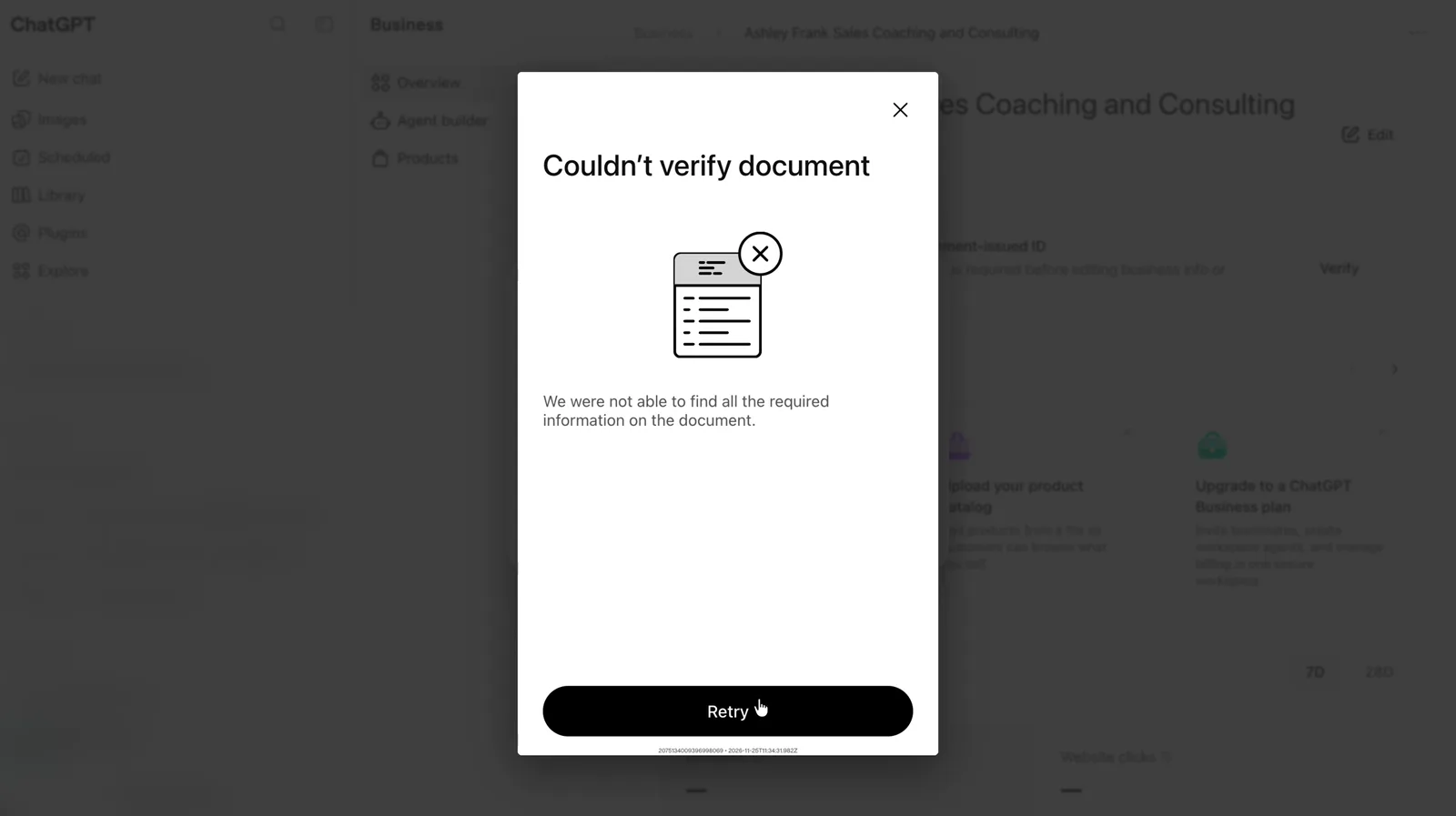
Third snag: my first document, my business registration certificate, came back with “Couldn’t verify document.” So I uploaded my business registration receipt along with the certificate, and that went through to review. If it happens to you, don’t panic. Just add another document with matching business details.
16. Done!
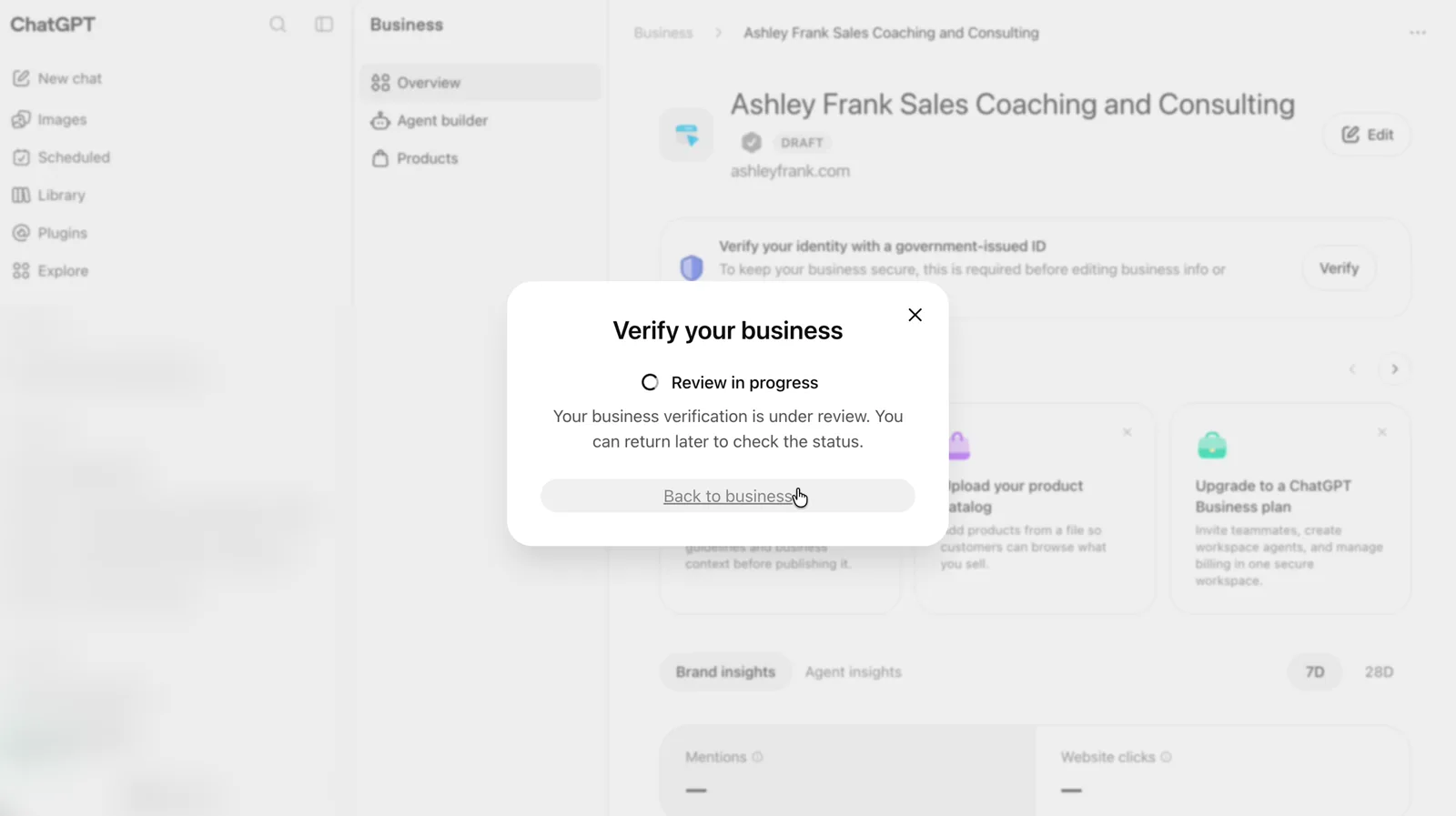
You’ll either be approved right away, or your application goes into review. If it’s in review, you’ll see “Review in progress” on your business overview, and you can check back later.
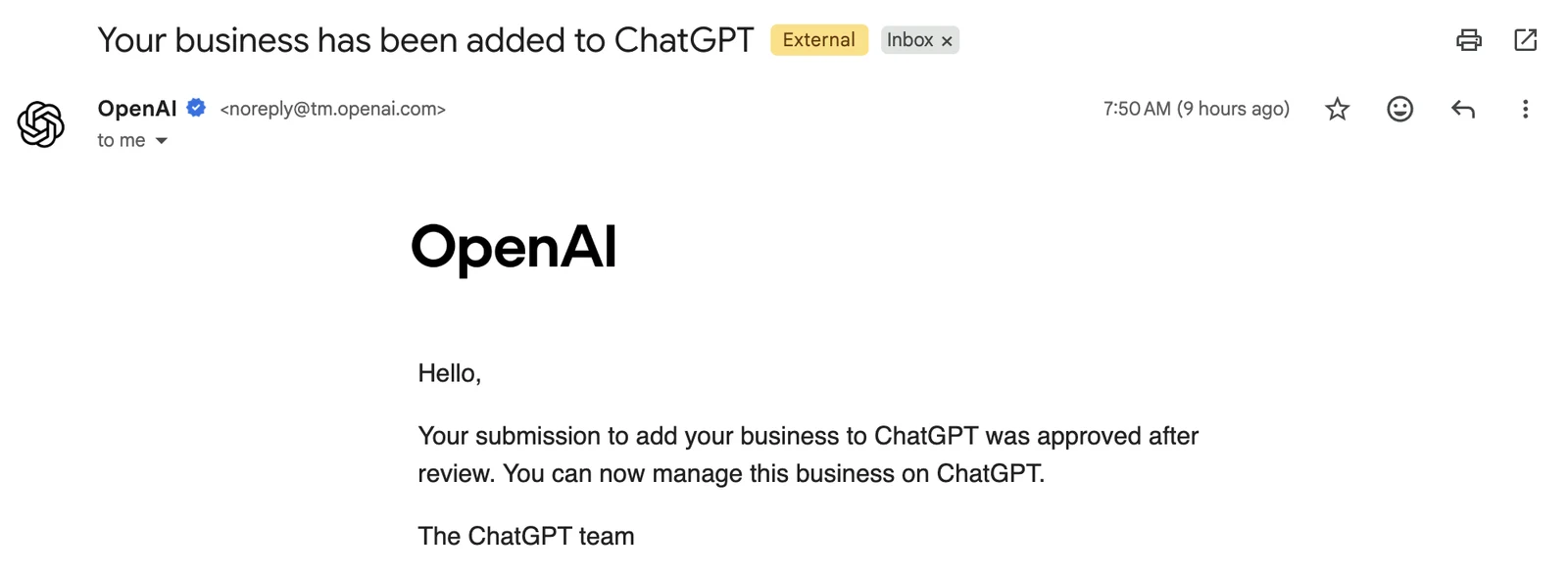
Once you’re approved, OpenAI sends you an email that says “Your business has been added to ChatGPT.” Mine came the same morning.
What happens after your verification
Good news: you don’t have to do anything else. Your profile is live, and you now own it, so you’re the one in control of the details ChatGPT has about your business.
ChatGPT will also make you some offers, including advertising credit.
My honest first take: Business Hub feels like OpenAI’s front door to making money from businesses, the same road Google and Meta went down with ads and paid add-ons. That’s not necessarily a bad thing, and claiming your profile is still free. Just know the offers will keep coming, and it’s your call whether any of them are worth paying for.
Your business overview page (chatgpt.com/business-hub) is also your dashboard. Here’s what’s on it:
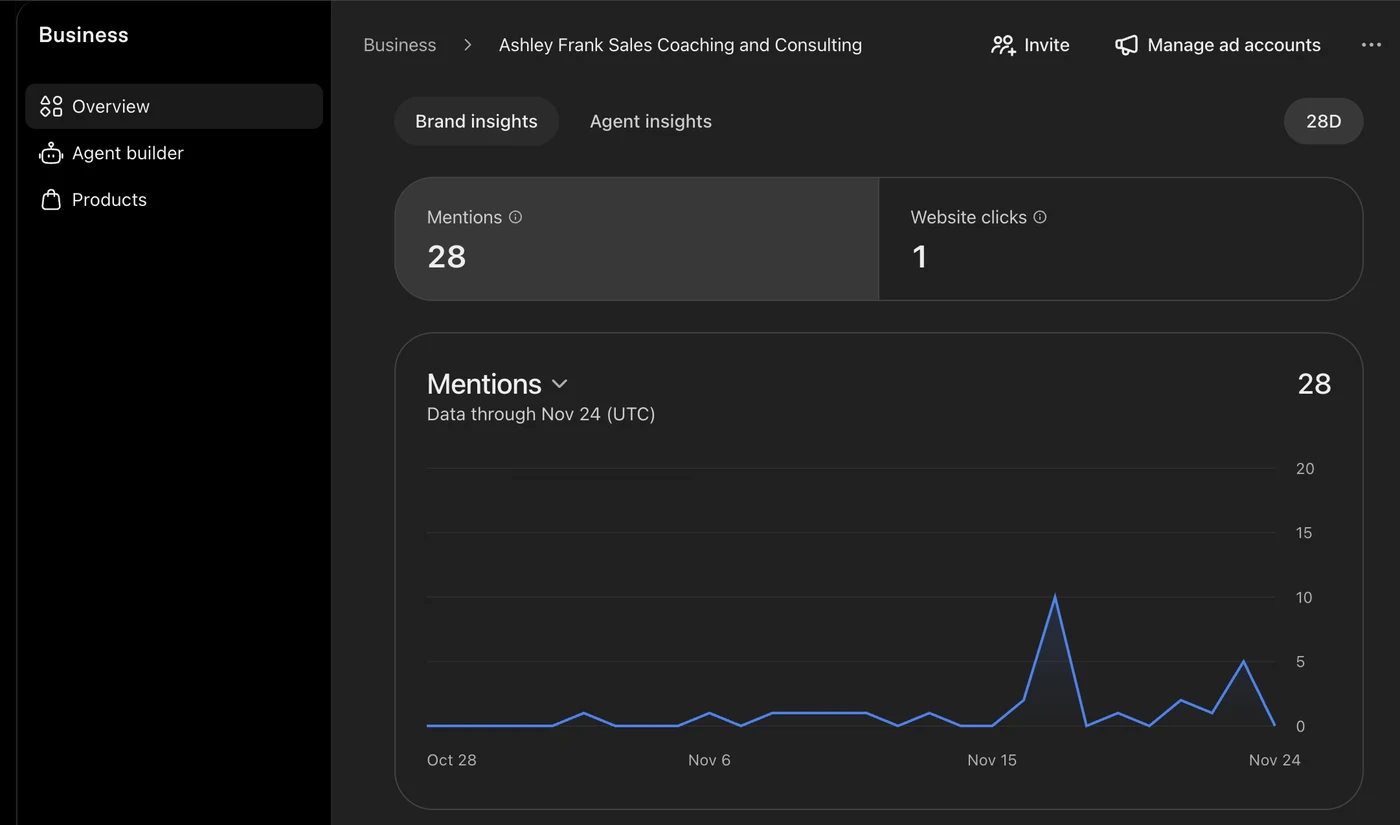
- Brand insights: how many times your business was mentioned in ChatGPT conversations and how many people clicked through to your website over the last 28 days.
- Agent builder: set up a ChatGPT agent for your business that can chat with potential customers.
- Products: a place to list what you sell.
- Website access: how ChatGPT can access your website.
When I first opened mine, it showed 28 mentions and 1 website click. The chart starts in late October, before I claimed my profile, so ChatGPT was already talking about my business. Now I can see it.
I haven’t tried the ad credit or the agent builder yet. But I’m going to, and once I’ve done some exploring, I’ll share what I learn in a future post.
Good to know
As of November 2026, here’s what OpenAI’s help page says. It’s changing fast, so check there for the latest.
- How you verify depends on your listing. You might be offered a code by phone or email, a website (DNS) record like I used, or a Shopify connection.
- Your business details have to match official records. Your name, address and any registration or tax number need to match what’s on file.
- Local stores and restaurants may be more limited for now. OpenAI’s help page says they can currently only claim an existing listing in the U.S. But when I tested it with a Halifax restaurant, the first step of claiming worked. So if you’re a local business outside the U.S., give it a try anyway.
- Claiming doesn’t guarantee you’ll be recommended more. It makes sure ChatGPT has your real details. OpenAI also says ads are separate and don’t change ChatGPT’s own answers.
Frequently asked questions
How long does it take to claim your business in ChatGPT?
It took me about 20 minutes to fill everything in. After that, your business is either approved right away or goes into a short review. Mine was approved the same morning.
Does it cost anything?
I wasn’t asked to pay anything to set up my profile, and I don’t have a paid ChatGPT plan. ChatGPT did offer extras along the way, like advertising credit and an upgrade to a paid ChatGPT Business plan, but you don’t need either one to claim your business.
Why won’t my phone number verify?
If you’re using a toll-free number (800, 844, and so on), ChatGPT may not send a text code to it. Use your mobile number instead, or try the voice call option.
What if ChatGPT can’t match my business to the business registry?
Enter your legal business name exactly as it appears on your registration document, spelling and punctuation included. If a document you upload can’t be verified, add another document with matching business details.
Being findable is step one. Turning those conversations into clients is step two.
- Take my free 2-minute sales quiz to see what’s really holding your sales back.
- Fix Your Follow-Up is my free mini-course: eight short video lessons on following up without feeling pushy.